Settings
Settings is split into tabs. The tab you're on is part of the page's address, so you can bookmark one.
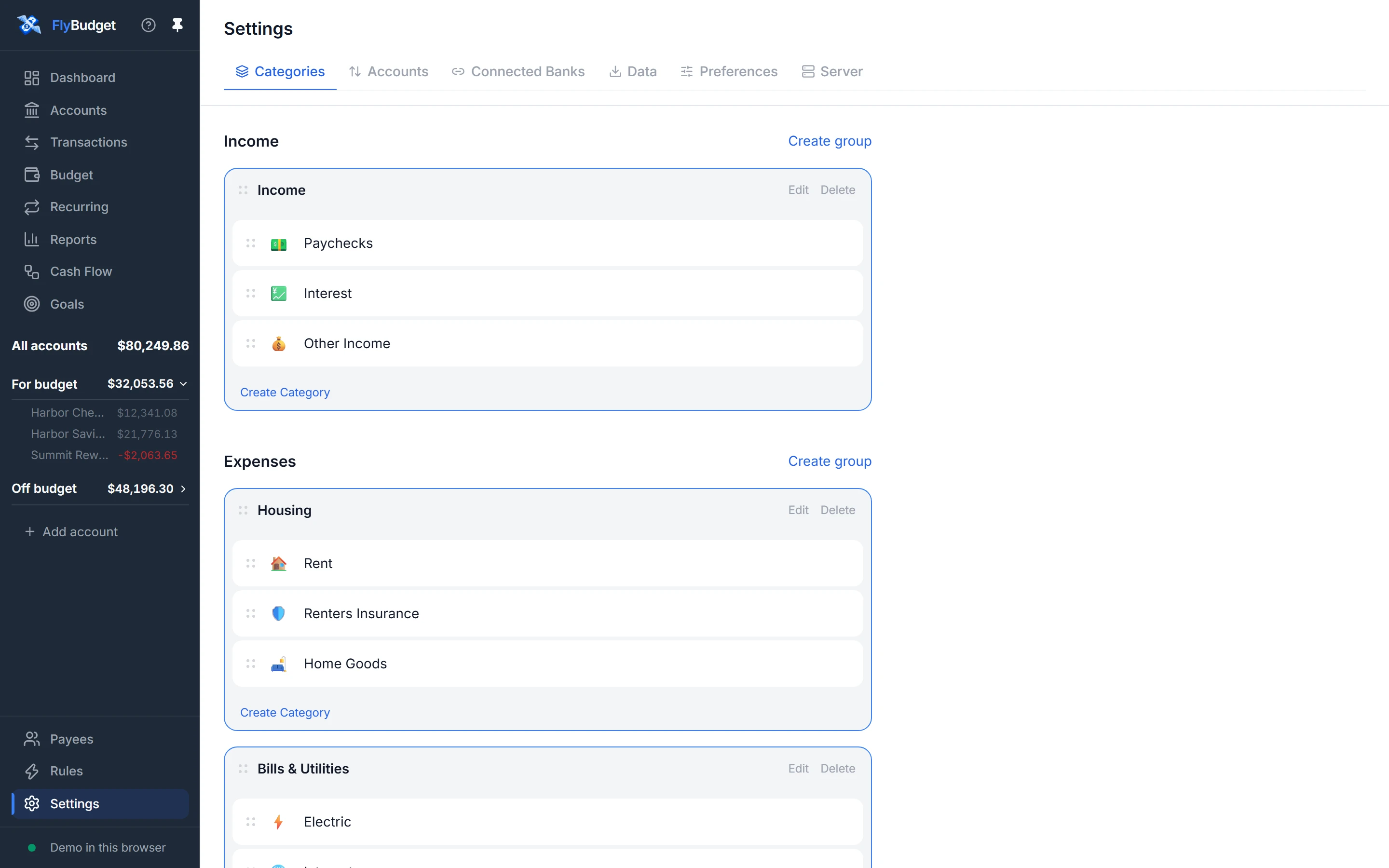
Categories
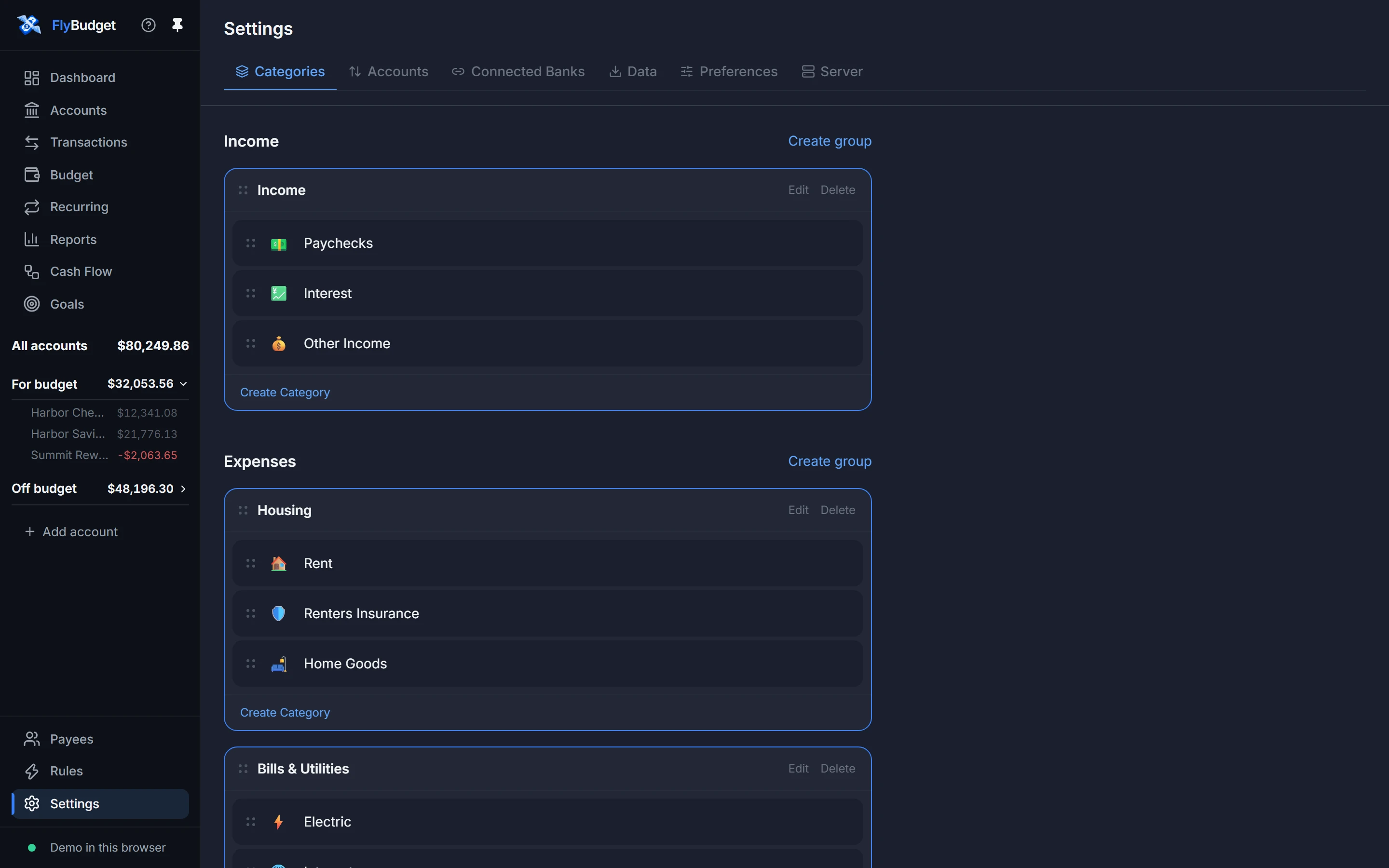
Your income and expense categories, in their groups. Create group adds a group for income or expenses, and Create Category adds a category to a group. Edit a category to change its icon, name, group and budget type; drag categories and groups to reorder them; Delete a category and choose where its transactions move. See How budgeting works.
Accounts
Account Order: drag accounts into the order you want them in the sidebar and on the Accounts page.
Connected Banks
Set up SimpleFIN or Plaid, see each connected bank with when it last synced, Sync Now, and disconnect.
Data
- Export Transactions: save transactions as a CSV file for a spreadsheet, optionally only those between two dates.
- Full Backup: Download Backup saves everything in one file.
- Restore from Backup: replaces your budget with a backup file.
See Backups and exports.
Preferences
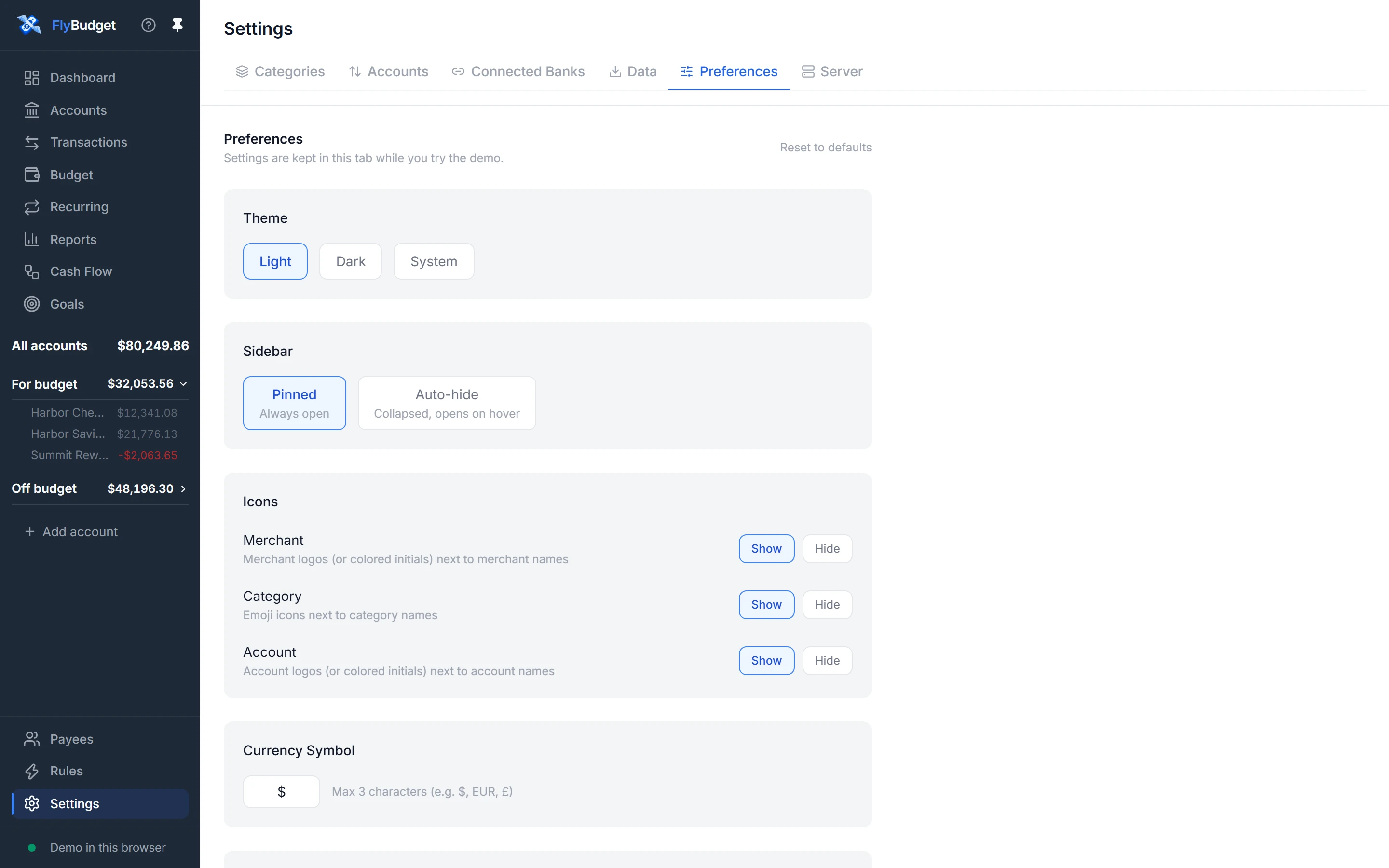
| Setting | Choices |
|---|---|
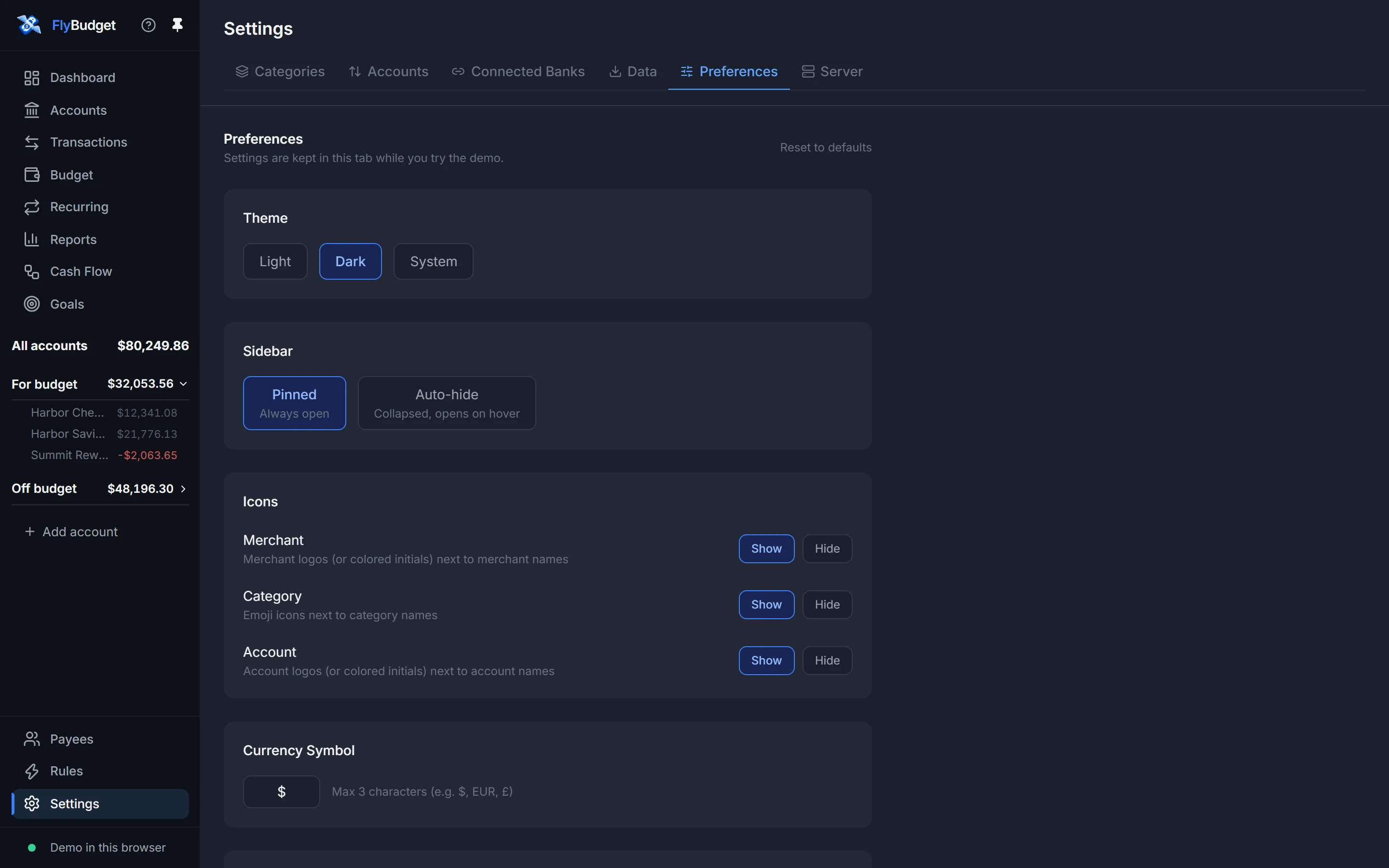
| Theme | Light, Dark, or System (follows your computer or phone). |
| Sidebar | Pinned (always open) or Auto-hide (collapsed, opens when you point at it). The pin at the top of the sidebar does the same. |
| Icons | Show or hide merchant, category and account icons. |
| Currency Symbol | Up to 3 characters, like $, €, £ or EUR. It only changes how amounts are shown, not their value. |
| Date Format | Jan 5, 2026, 01/05/2026, 05/01/2026 or 2026-01-05. |
Reset to defaults puts them all back. Preferences are saved in your browser (or in the desktop app) rather than in your budget, so each device can have its own.
Server
Where your data lives, and the version of FlyBudget you're running.
- Desktop app: your budget is a file on this computer. This tab links to the self-hosting guide if you'd like to use FlyBudget on other devices.
- Self-hosted server: a Security check of your setup (HTTPS, proxy, allowed hosts, encryption key, password) with a hint for anything to fix, your Signed-in devices (sign out any of them, or all the others), Change password, Sign out, and Keep a copy of my budget on this device (see Working offline).
Undo
Made a mistake? Press Ctrl+Z (⌘+Z on a Mac) to undo your last change, and Ctrl+Shift+Z to redo it. A message at the bottom of the screen says what was undone, with a button to redo it. Undo works for changes to transactions, accounts, budget amounts, categories, payees, rules, recurring items, goals, reports and dashboards, while you're not typing in a field.
The status line at the bottom of the sidebar shows where your budget is stored and whether FlyBudget can reach it; click it for details, including the version.