Using FlyBudget on your phone
The desktop app runs on one computer. To open your budget on your phone (or any other device), run FlyBudget on a self-hosted server and open its address in your phone's browser. Sign in with your server's password, and you'll stay signed in on that phone for 30 days.
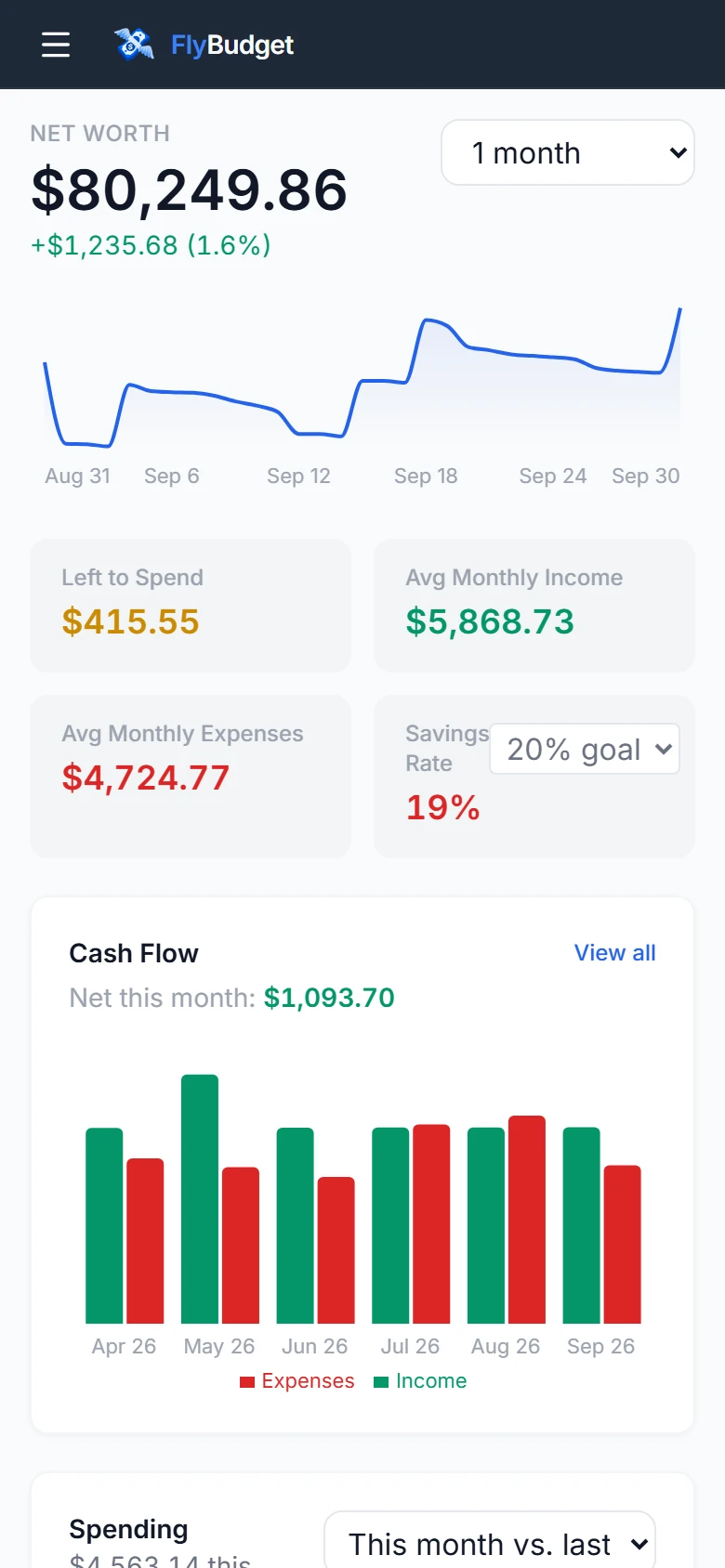
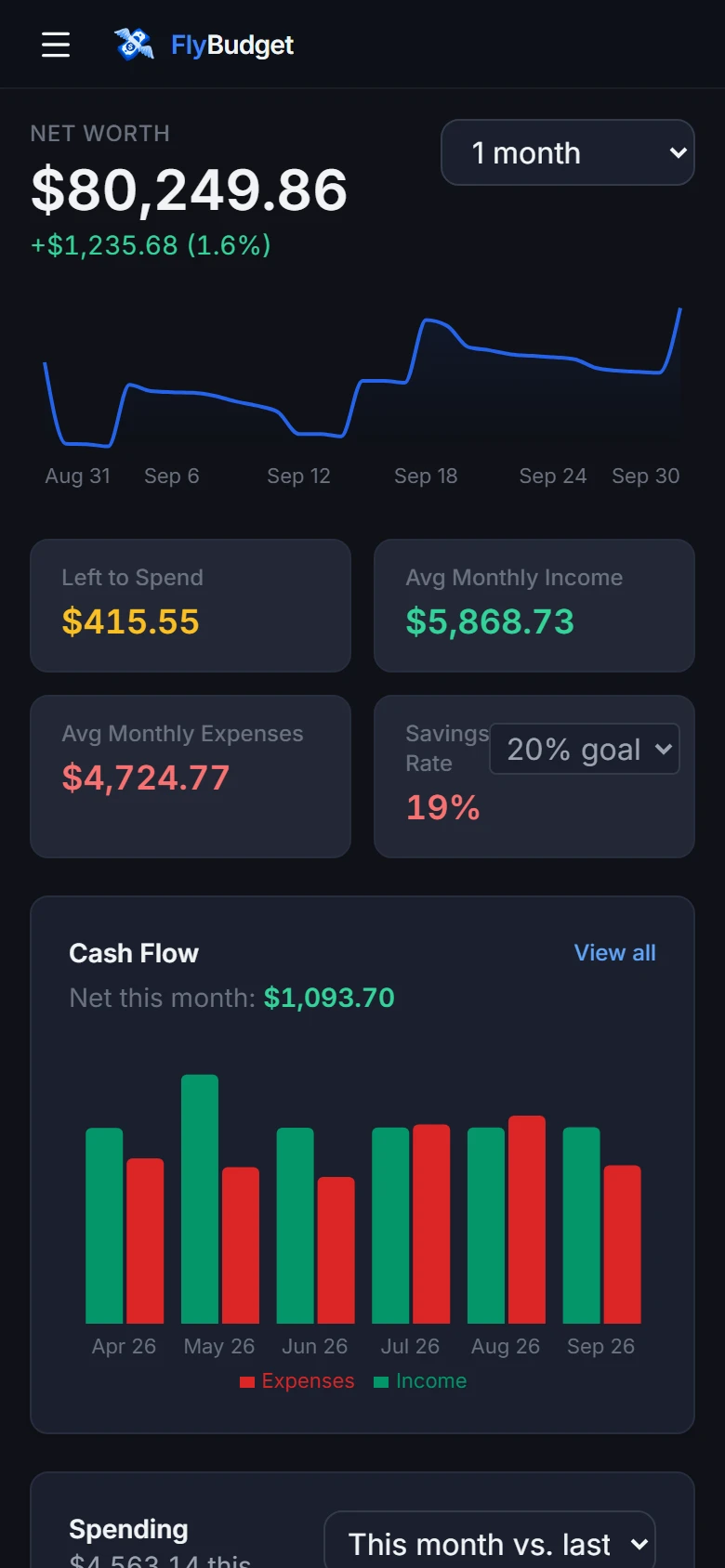
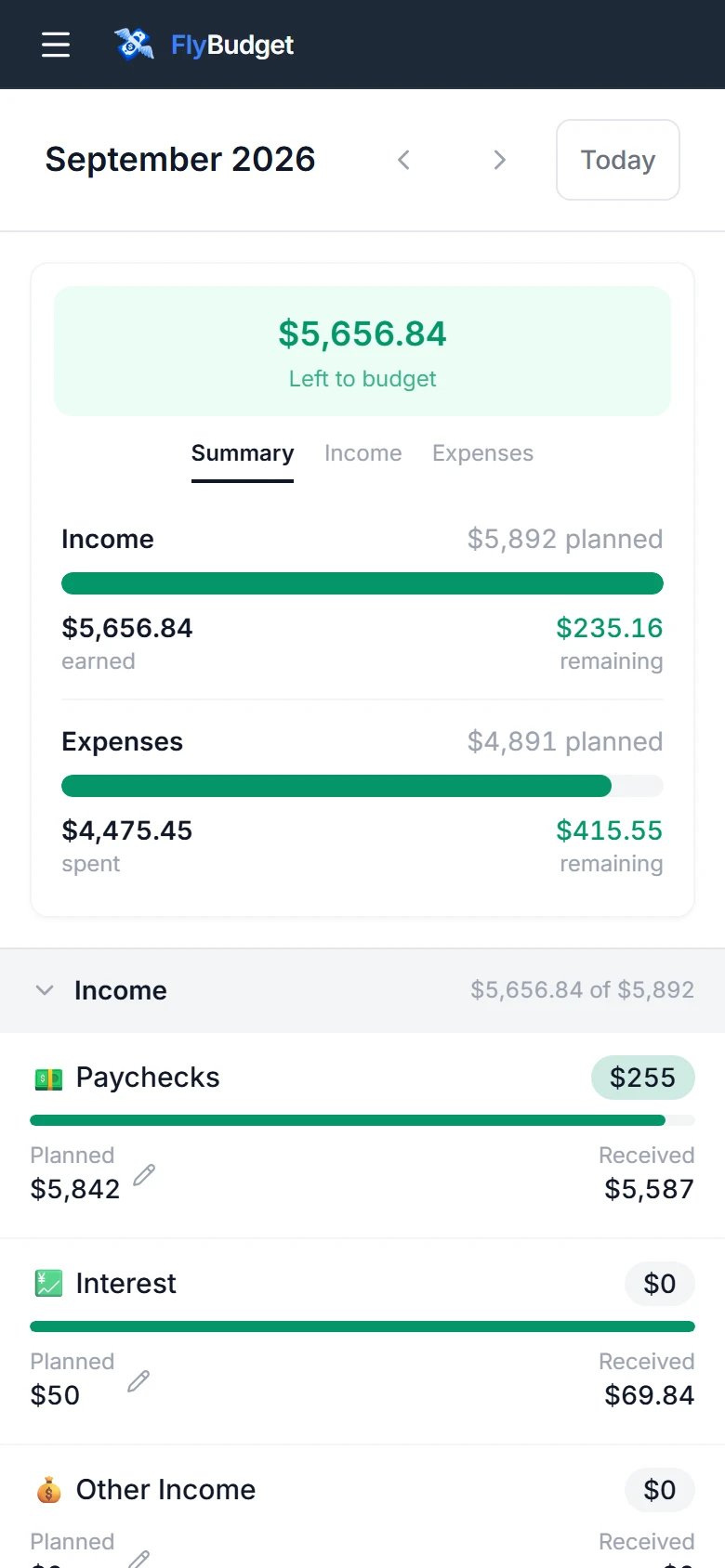
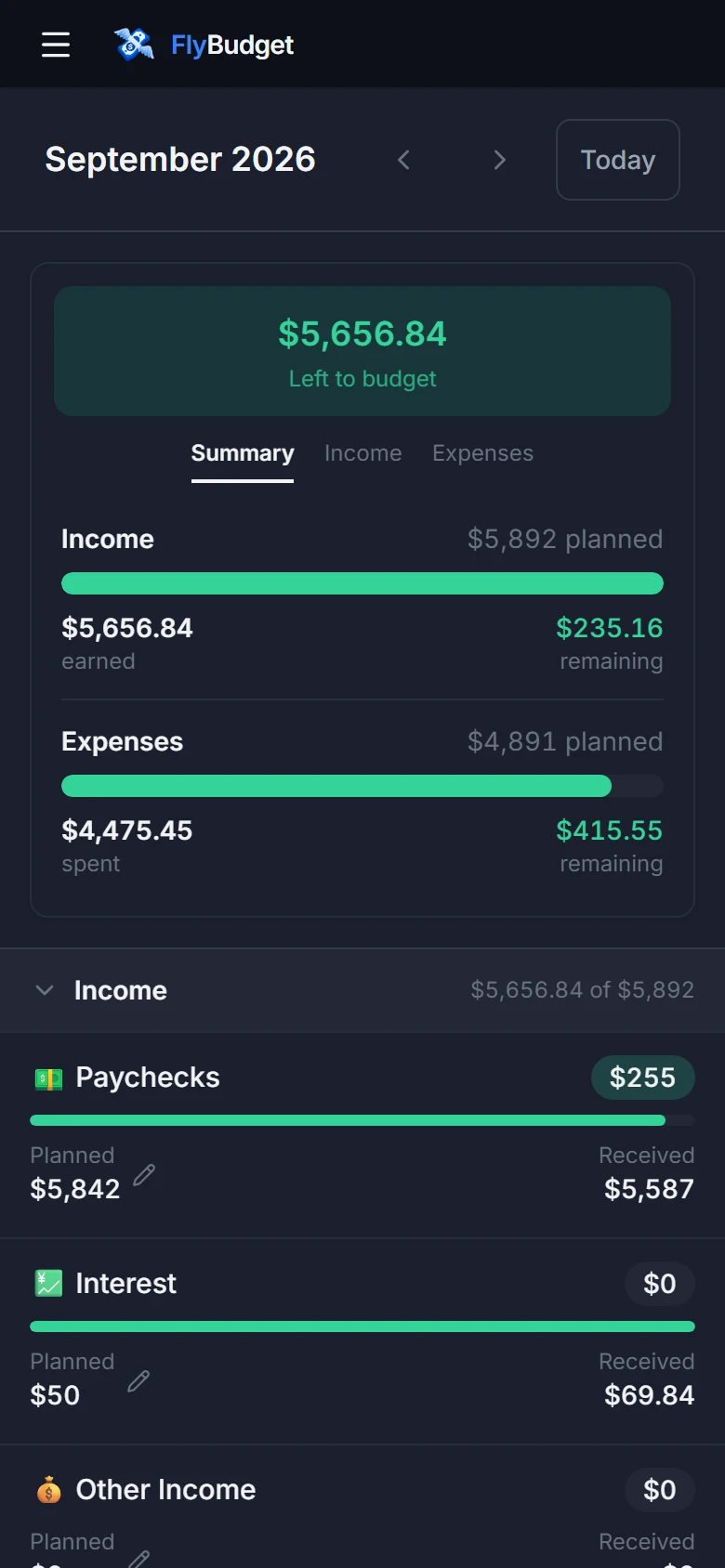
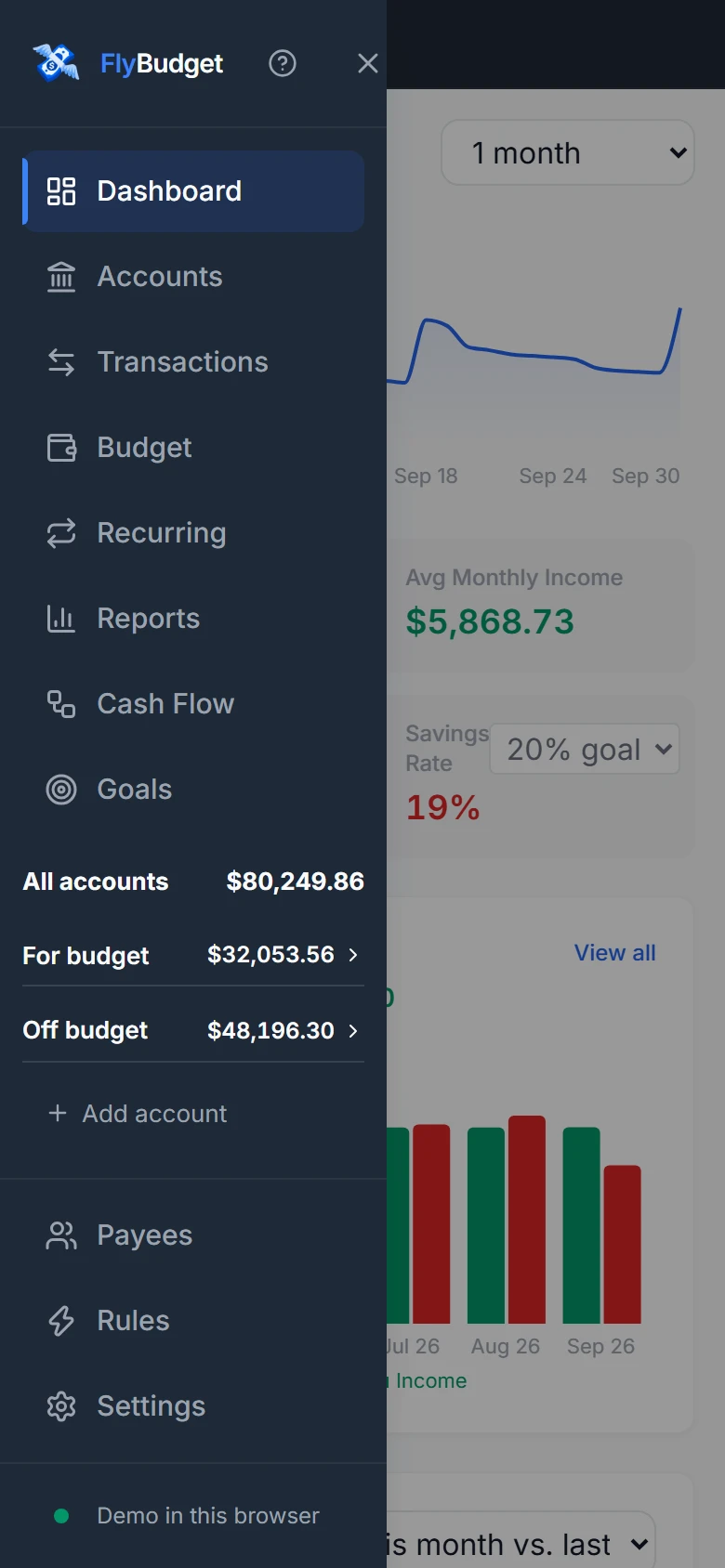
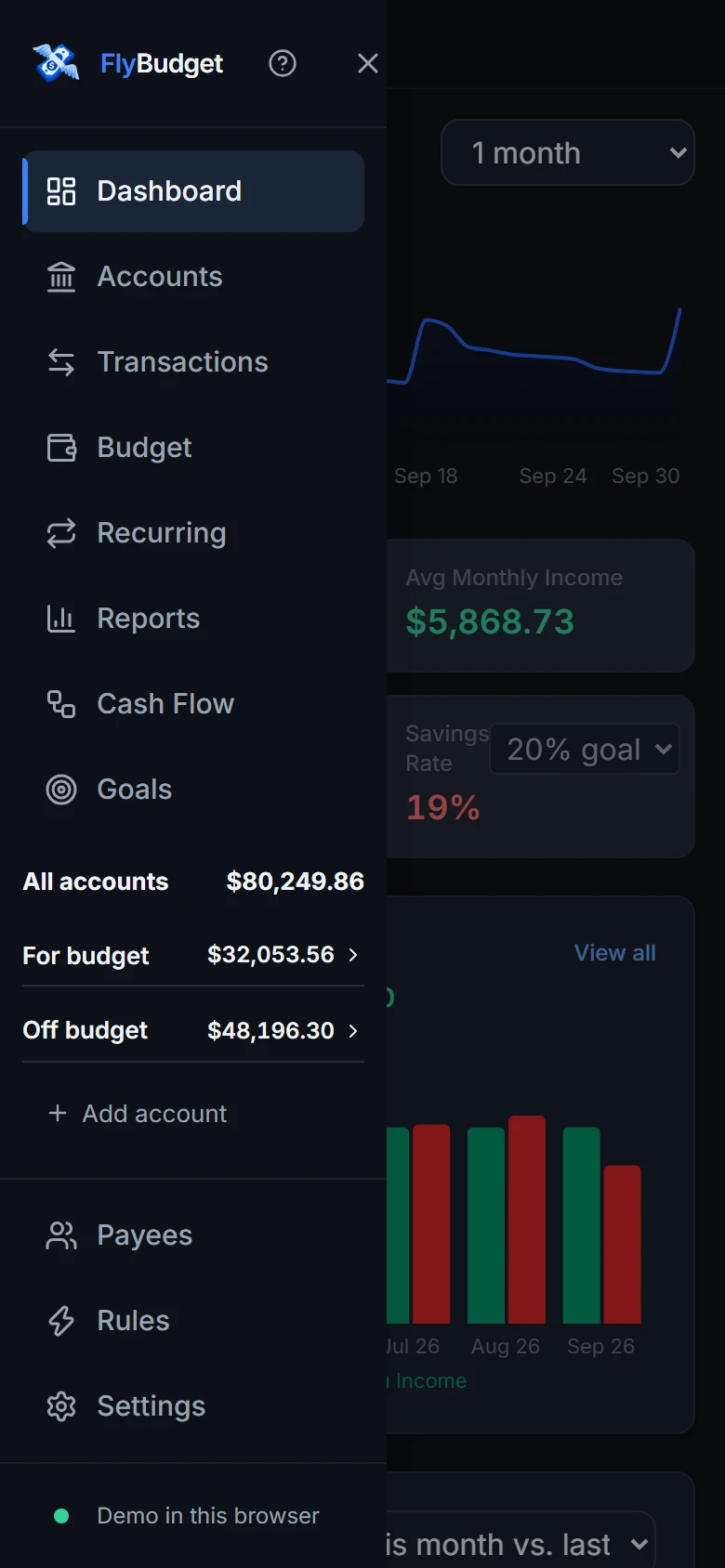
Made for small screens
Every page works on a phone:
- The menu button at the top left opens the sidebar; tap a page or outside it to close it.
- Transactions become cards. Tap one to open its details full screen.
- Budget groups become cards you can open and close. Tap a planned amount to change it in a sheet that slides up from the bottom. Inactive categories are behind a button.
- Payees and Rules become cards, with their actions in a ⋮ menu. Rules move with Move up and Move down instead of dragging.
- Adding a transaction opens a sheet with one field per row.
- Report dashboards show widgets one under another.
- Dialogs open as sheets from the bottom, and every button is big enough to tap.
Add it to your home screen
In your phone's browser, choose Add to Home Screen (Safari: the share button; Chrome: the ⋮ menu). FlyBudget then opens like an app. On a server with HTTPS, the app itself is saved on your phone, so it opens even when the server can't be reached (see Working offline).
Sharing a budget
Everyone who knows the server's password can open the same budget from their own devices, at the same time. There are no separate user accounts yet: everyone sees and can change everything. Settings → Server lists every signed-in device, and you can sign any of them out.