Payees
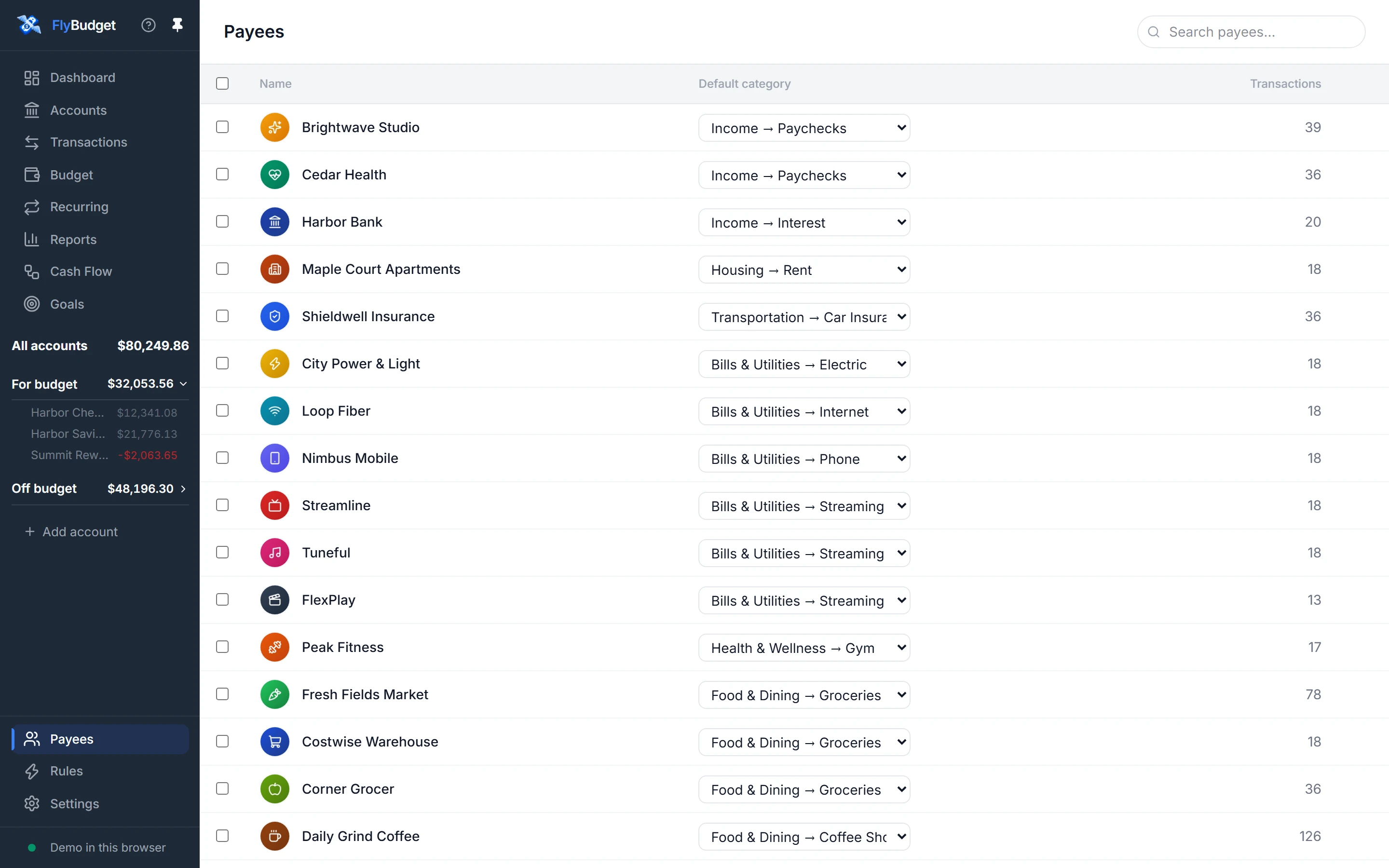
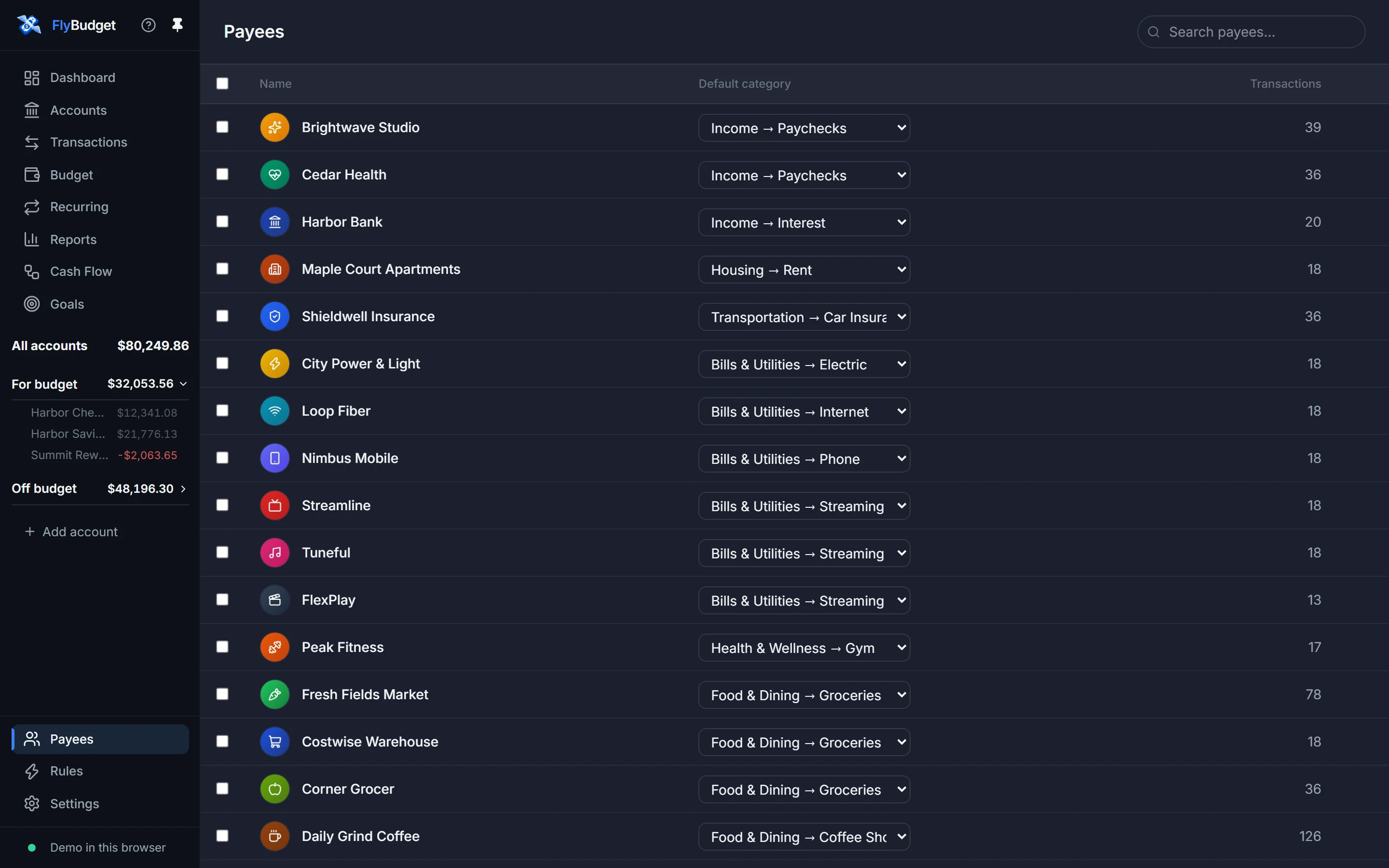
A payee is anyone you pay or get paid by: a shop, your landlord, your employer. FlyBudget creates payees as you add, import and sync transactions, and Payees lists them all with how many transactions each one has. Search the list with the box at the top.
Default categories
Pick a Default category for a payee, and new transactions from it are put in that category when nothing else decides: a category you choose yourself comes first, then your rules, then the payee's default. It's the quickest way to categorize the shops you visit every week.
Run rules on the Rules page (with every rule) also fills in default categories for past transactions that are still uncategorized.
Renaming and deleting
Double-click a payee's name to rename it (Enter saves, Escape cancels), and use the trash button at the end of its row to delete it. On a phone, both are in the row's ⋮ menu. Renaming changes the name on all of its transactions. Deleting a payee keeps its transactions; they just lose the link to it.
Logos
Click a payee's icon to give it a logo (a PNG, JPEG or WebP image); the × removes it. Logos also show on transactions and in the transaction details panel, where you can change them too. Turn merchant icons off in Settings → Preferences → Icons.
Merging payees
Banks often spell the same place several ways (AMZN MKTP, Amazon.com, AMAZON PRIME). Tick
two or more payees, choose Merge, and pick the name to keep. All of their transactions move
to that payee, and a logo is kept if the payee you keep doesn't have one.
To stop new variations from appearing, add a rule that renames them: "if imported
description contains AMZN → rename payee to Amazon".