Importing transactions
Almost every bank lets you download your transactions as a CSV file from its website (look for "Download", "Export" or "Statements"). FlyBudget can import those files into any account. It's free, works with every bank, and nothing but the file is involved. If you'd rather have transactions arrive by themselves, connect a bank instead.
Importing a file
-
Open the account the transactions belong to, and choose Import CSV.
-
Drop the file on the window, or click to pick it.
-
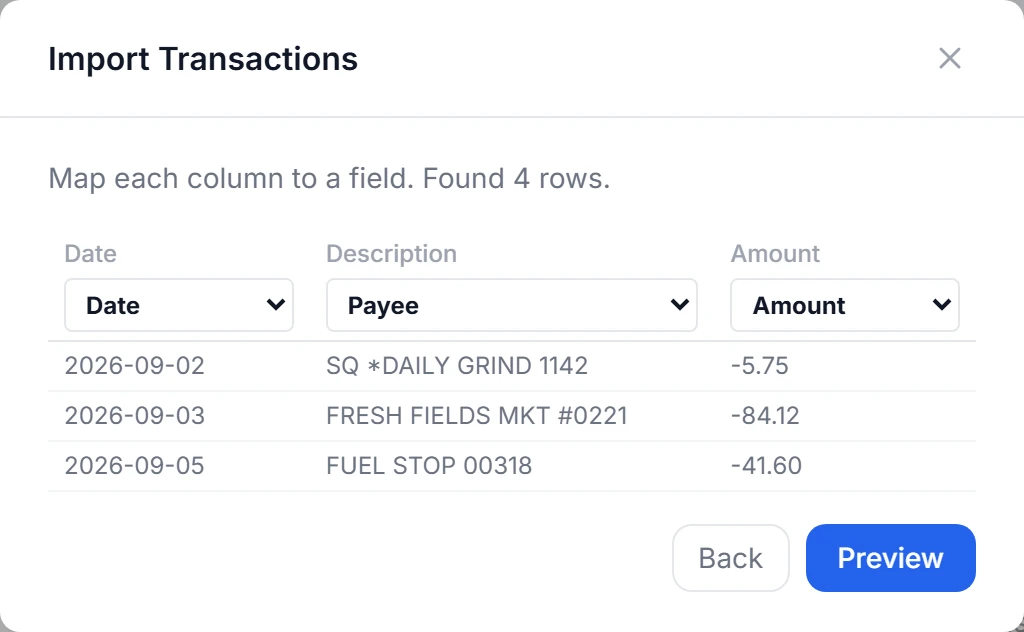
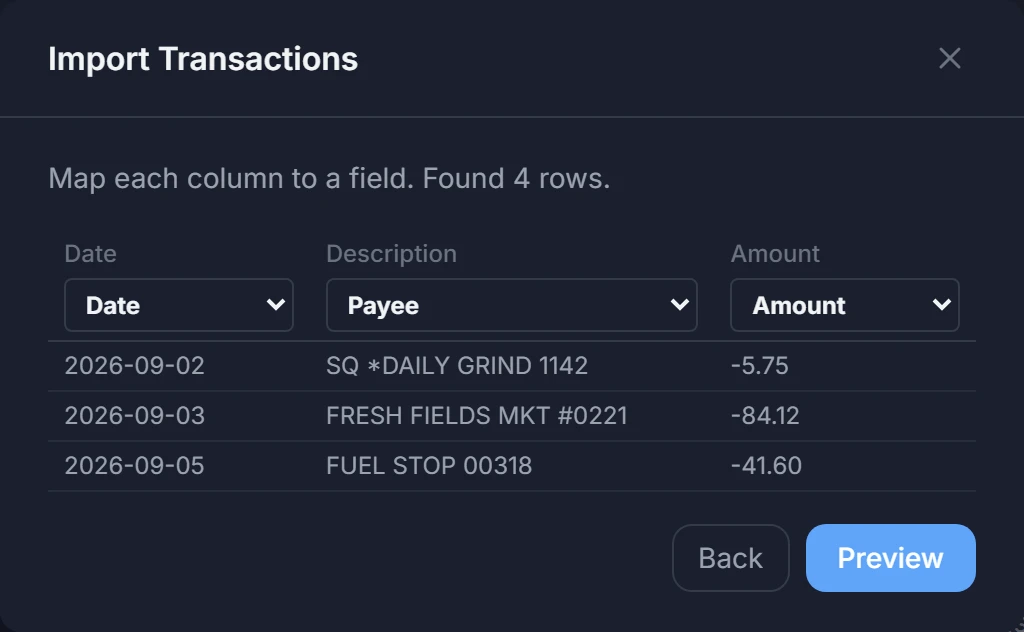
Map the columns. FlyBudget reads the file's headers and guesses what each column holds. Check the guesses, and change any that are wrong: Date, Payee, Amount, Inflow, Outflow, Notes or Skip. The first rows are shown underneath so you can see that it looks right. You need a date and either an amount or inflow/outflow columns.
-
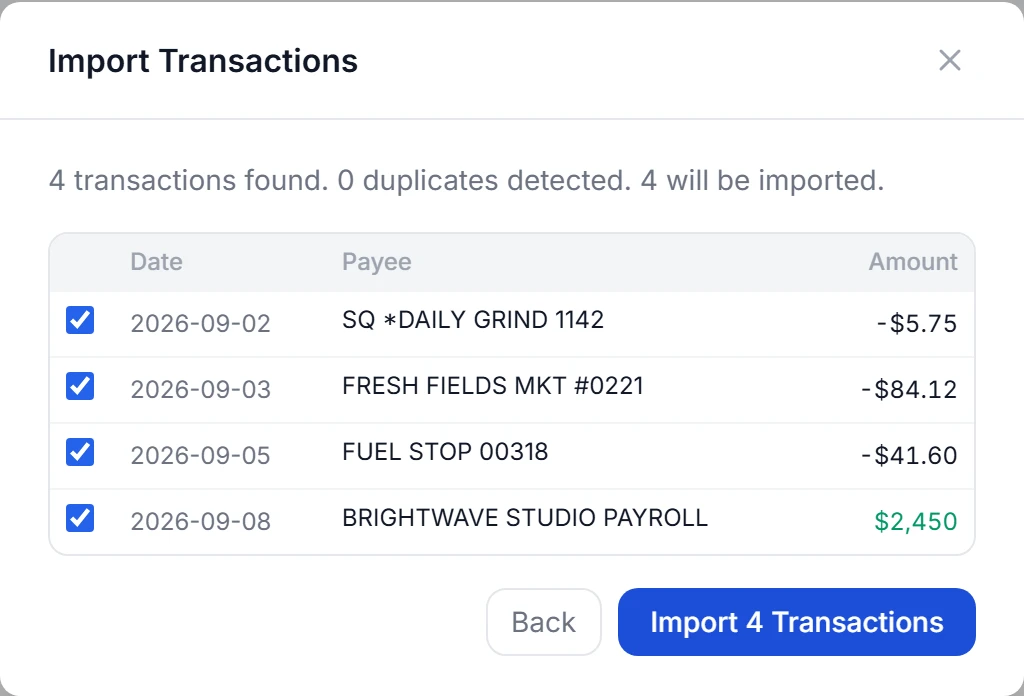
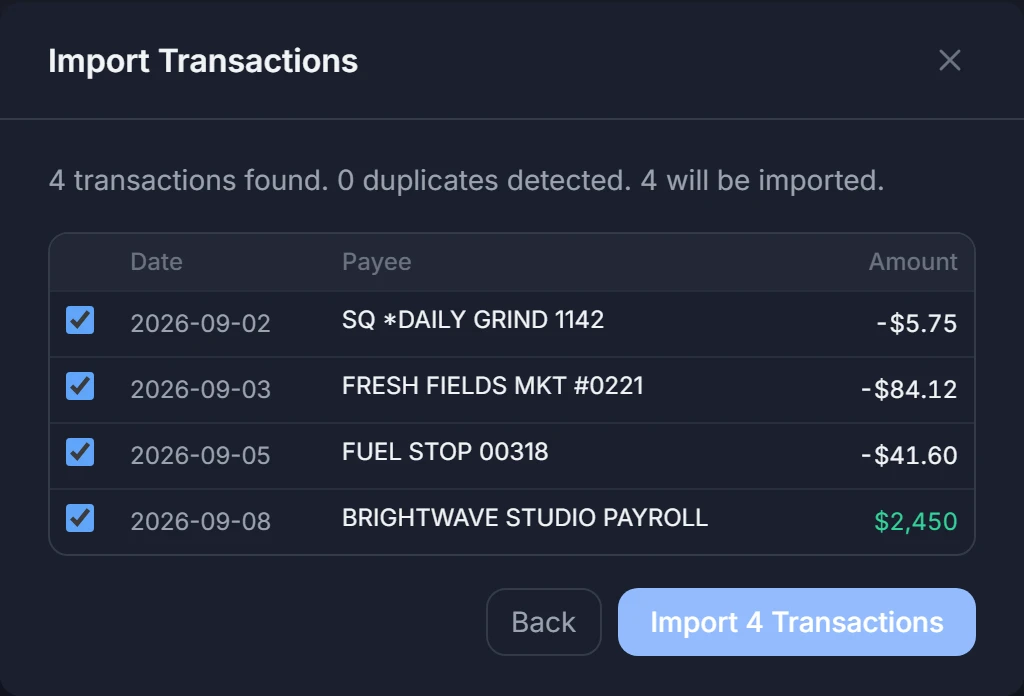
Preview. Every row is listed with its date, payee and amount. Rows you already have are marked duplicate and unticked. Untick anything else you don't want.
-
Choose Import. FlyBudget says how many transactions it imported and how many it skipped.
Your rules run on every imported transaction, so they can rename
SQ *DAILY GRIND 1142 to Daily Grind Coffee and put it in Coffee Shops. FlyBudget keeps the
bank's original text as the imported description, which rules can match on too.
Duplicates
FlyBudget remembers every row it imports, so importing a file that overlaps one you imported before is safe: the rows you already have are skipped. Two identical rows in the same file (two coffees at the same price on the same day) are treated as two purchases.
Transactions you entered by hand aren't matched against an import. If you enter transactions by hand and import files for the same account, check the preview for rows you already have.
What FlyBudget understands
- Dates:
2026-01-05,01/05/2026(month first) and written-out dates likeJan 5, 2026. - Amounts:
-12.00,$1,234.56,(12.00)and12.00-for money going out. With separate inflow and outflow columns, FlyBudget works out the sign. - Files up to 100,000 rows. Rows with an amount of zero are left out.
If your bank writes the day before the month (05/01/2026 for 5 January), or uses a comma as the
decimal separator, change the format in a spreadsheet before importing.
Credit cards
Some banks export credit card purchases as positive numbers. If your purchases show up as money coming in, map the column as Outflow instead of Amount. Every row is then treated as money going out, so fix any refunds by hand after importing.