The dashboard
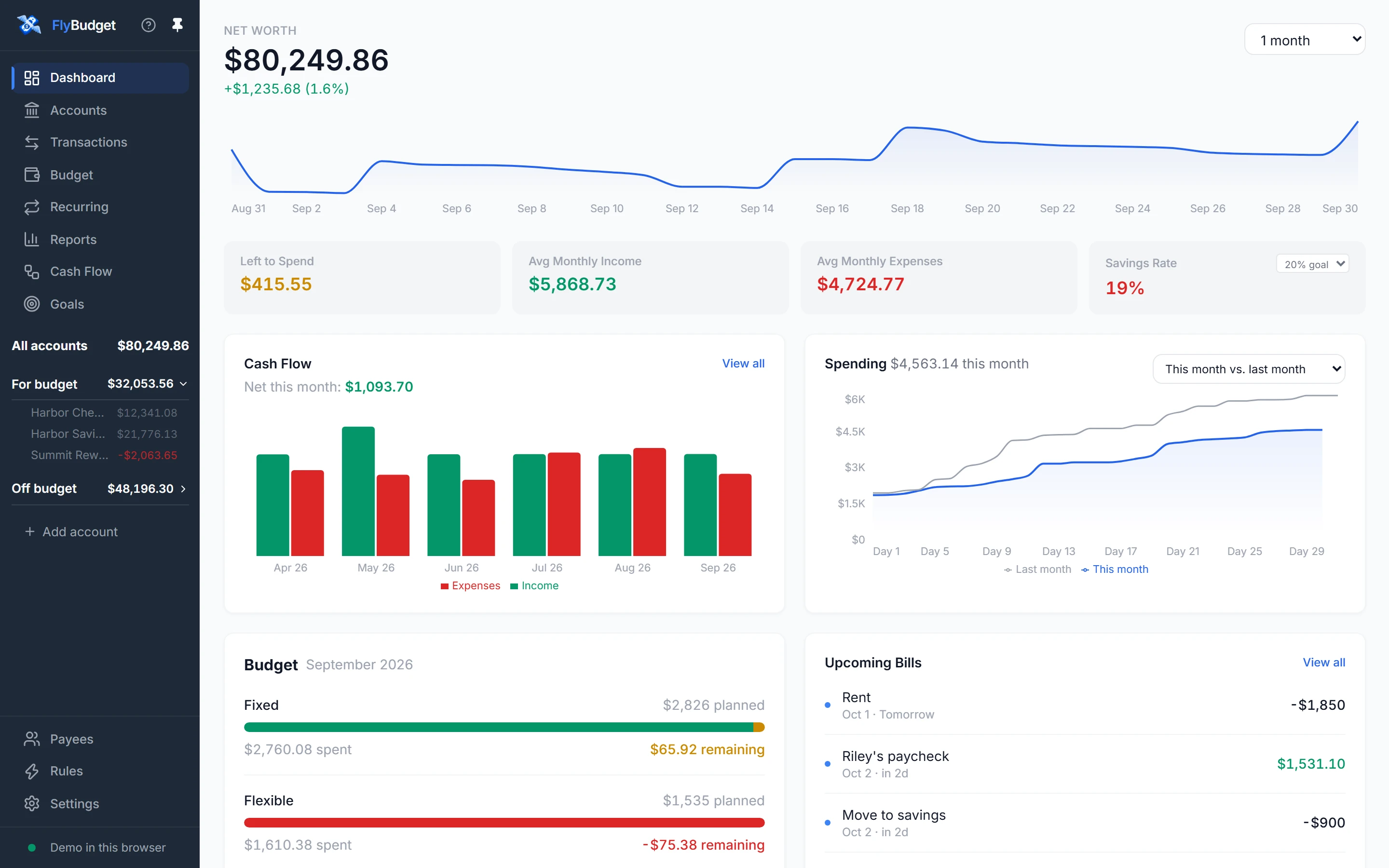
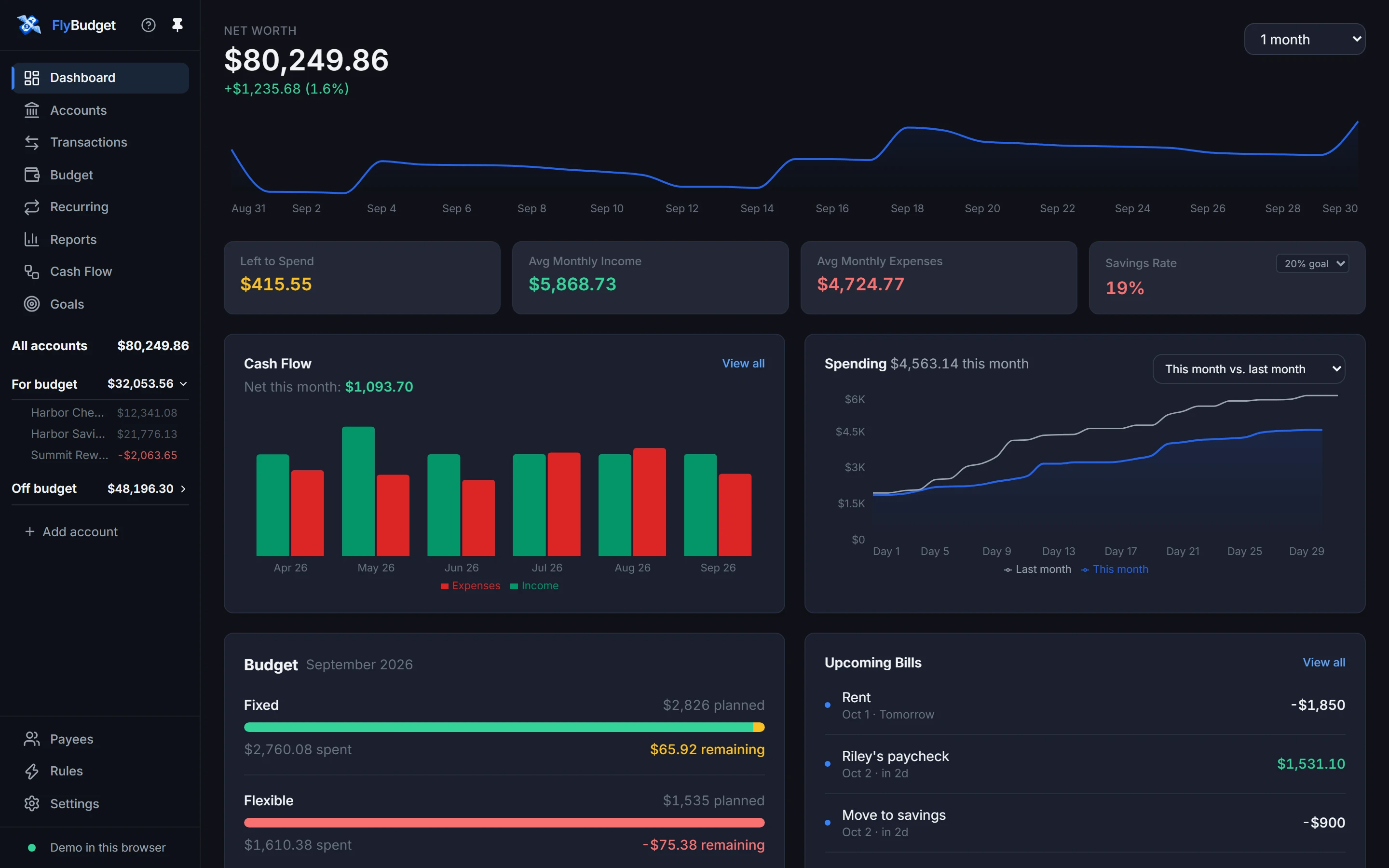
The dashboard is FlyBudget's home page. It pulls together the numbers you check most often, so you can see how the month is going without opening every page. Everything on it updates as you add transactions and change your budget, and every card links to the page its numbers come from.
Get started checklist
While you're setting up, the top of the dashboard shows Get started with FlyBudget: add an account, bring in your transactions, add your bills and paychecks, plan this month's budget, and create a rule. Each step ticks itself off when FlyBudget sees you've done it, and its button takes you to the right place. The checklist disappears once every step is done, or when you hide it.
Net worth
The chart at the top shows your net worth (everything you own minus everything you owe) over time, with the change since the start of the range in green or red. Pick the range in the top right: 1 month, 3 months, 6 months, year to date, 1 year or all time. Ranges up to three months show a point for each day; longer ones show one for each month. Hover over the chart to see the value on a given date.
Summary figures
| Figure | What it shows |
|---|---|
| Left to Spend | This month's planned spending minus what you've spent so far. Green while you've used less than 80% of the plan, amber from 80%, red once you're over. Shows "—" until you plan a budget. |
| Avg Monthly Income | Your average income per month over the last 12 months (or since your first transaction, if that's more recent). |
| Avg Monthly Expenses | The same for spending. |
| Savings Rate | The share of your income you keep, from the two averages. Choose a goal from 10% to 30%: the figure is green when you meet it and red when you don't. |
Transfers between your accounts and balance adjustments aren't income or spending, so they don't count here.
Cash Flow
Income (green) and expenses (red) for each of the last six months, with this month's net at the top. View all opens Reports.
Spending
Your running total of spending day by day, next to a comparison period in gray, so you can see whether you're spending faster or slower than usual before the month is over. Compare:
- this week with last week,
- this month with last month (the default),
- this month with the same month last year,
- this month with your average month, or
- this year with last year.
Budget
This month's planned and actual spending for Fixed, Flexible and Non-Monthly categories, with a bar that turns amber from 80% of the plan and red when you're over. Kinds with nothing planned are left out (savings show on the Budget page instead). The month's name opens the Budget page.
Upcoming Bills
Up to five recurring bills, subscriptions and paychecks due in the next 30 days, the soonest (and anything overdue) first, with how many days are left. View all opens Recurring.
Spending by Category
Your seven biggest spending categories this month, with bars sized against the biggest one.
Recent Transactions
Your five latest transactions. Click one to open Transactions.
Empty cards
A new budget has nothing to show yet, so each card says what it will show and offers a button to get there: add an account, plan your budget, add a recurring bill, and so on.